Step 1: Registration and Setup
- Sign-up to app.bvcircuits.com.
- Note: This guide is suitable for schematics in EasyEDA Pro. It may not be suitable for the standard version of EasyEDA.
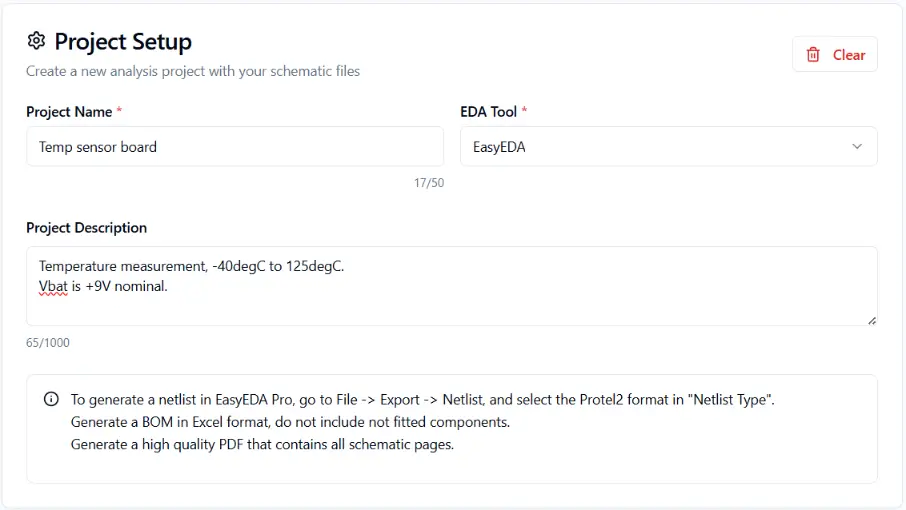
Step 2: Project Details
- Enter the project name and a short project description. It is useful to add to the description important things that describe your schematic and will help the AI engine in the analysis. For example, details on the input/output interface, voltages and currents, the application of the PCB, etc. The better the project description, the more accurate the AI analysis becomes.
- Select the EDA software that was used to create the schematic – in this case, EasyEDA.
Step 3: Export Protel2 Netlist
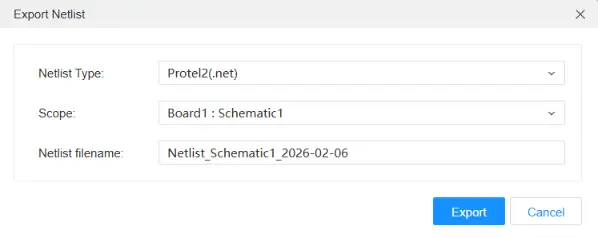
Open your schematic in EasyEDA Pro, select your root project under Design Resources, and:
- Open File → Export → Netlist
- Select Netlist type → Protel 2.
- Under the “Scope” dropdown menu make sure to select the entire schematic, and then click on “Export”.
Step 4: Export BOM in Excel Format
- Go to File → Export → Bill of Materials (BOM), and then Export BOM.
- Ensure to include reference designators, manufacturer part numbers and names, and component descriptions.
- Do not include non-populated (not fitted) components in the BOM.
Step 5: Export Schematics PDF
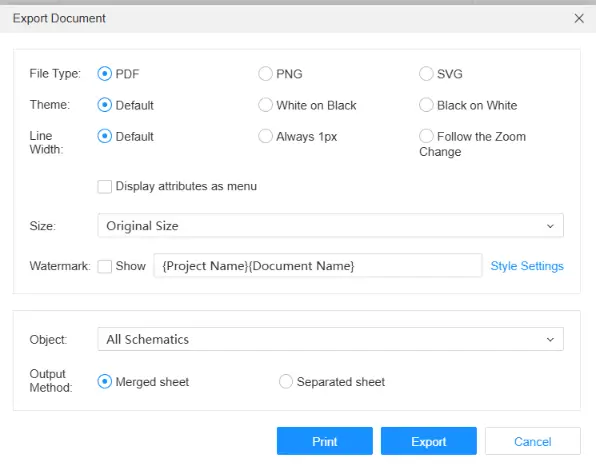
- Go to File → Export → PDF/Image.
- Select PDF file type, “All schematics” as an object, and “merged sheet” to export a single file with all pages of the schematics.
Step 4: Upload the Files
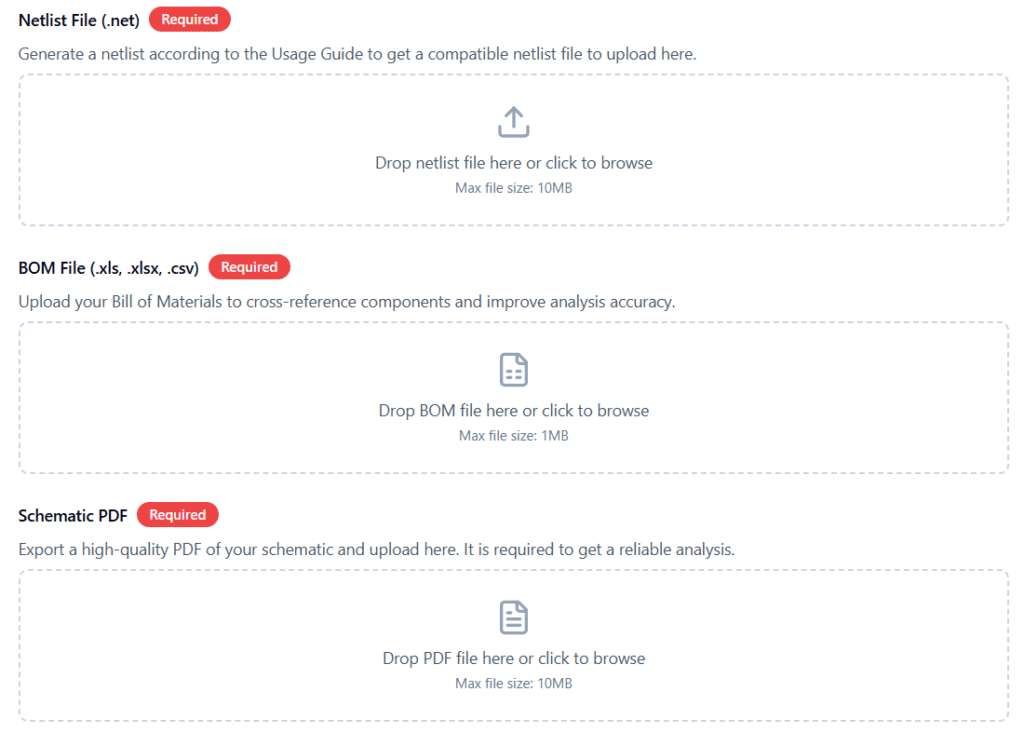
- Drag and drop or browse and upload the Netlist, the BOM and PDF files you created in the previous steps.
- Start the analysis. You will receive an email notification once the process is complete. The analysis typically takes between 5 to 30 minutes.
Step 5: Results and Recommendations
- Once the analysis is complete, a full report will be generated, including all findings as well as a short AI-generated summary. Typical results include: connectivity issues, logical pitfalls, component insights, best-practice suggestions, reliability and other design issues.
- You can download the report in PDF format.
In addition, every analysis is automatically saved to your personal Dashboard for future access.
You’re now ready to let AI help you design smarter, faster, and with fewer mistakes!